-->

dev youtube

I’m not a big fan of Youtube’s web application. I’d like to categorise my subscriptions, but YouTube doesn’t allow this. I have multiple Google accounts, and I use them to group certain videos. When I’m in the mode of watching software development videos, I switch to one account. If I’m in the LEGO mood, I switch to another. The problem is I’m not watching YouTube on Kodi on Raspberry Pi (about which I wrote a tutorial), and managing multiple accounts is harder, so I decided to combine all my subscriptions in one account. This article shows I managed to do it.

Authentication

First, Google needs to know you have permission to fetch the subscriptions from your YouTube account. To achieve this, go to Google Cloud Console.

Create a new project:

New project screen

Then, click Library on the left menu and search for YouTube. Select YouTube Data API v3 and click Enable.

enable youtube API screen

Click the OAuth consent screen link. Select External user type and click the Create button.

OAuth consent screen select user type screen

Give your app a name and select your account’s email as “User support email”. The app name appears on your confirmation screen so I’d recommend giving it a meaningful name such as YouTube-Migration-Source (there will be a destination too).

Enter your email again as “Developer contact information”.

Click Save and Continue.

In the Scopes screen, click Add or Remove Scopes and select youtube:

Add or remove scope screen showing youtube selected

Click Save and Continue.

Adding Test users is not mandatory but is helpful in the next steps so I’d recommend adding your email address as a test user. This way you can still use the application without having to publish it.

Click Save and Continue after you’ve added your email address as a test user.

Then, click the Credentials link on the menu.

Click Create Credentials and select OAuth client ID.

Select Desktop app as your application type, give it a name and click the Create button.

create OAuth client application type selection screen

Click Download JSON in the confirmation dialog box:

OAuth client created confirmation dialog with Download JSON button

Now, the good news is that you have the credentials to access your source YouTube account. The bad news is you have to repeat the same steps for the destination account. In the end, rename your credential files to client_secrets_source.json and client_secrets_destination.json and move on to the next section to implement the application.

Implement the Application

Now that the boring part is over let’s write some code and have fun.

Create a new dotnet console project by running

mkdir YouTubeMigrationClient
cd YouTubeMigrationClient
dotnet new console

Then add Google YouTube SDK to the project:

dotnet add package Google.Apis.YouTube.v3

Copy client_secrets_source.json and client_secrets_destination.json files under this project’s folder.

Add a new C# file named YouTubeServiceFactory.cs and replace its contents with the code below:

using System.Reflection;
using Google.Apis.Auth.OAuth2;
using Google.Apis.Util.Store;
using Google.Apis.YouTube.v3;

namespace YouTubeMigrationClient;

public class YouTubeServiceFactory
{
    public static async Task<UserCredential> CreateCredential(string credentialFileName)
    {
        UserCredential credential;
        using (var stream = new FileStream(credentialFileName, FileMode.Open, FileAccess.Read))
        {
            credential = await GoogleWebAuthorizationBroker.AuthorizeAsync(
                (await GoogleClientSecrets.FromStreamAsync(stream)).Secrets,
                new[] { YouTubeService.Scope.Youtube },
                "user",
                CancellationToken.None,
                new FileDataStore(Assembly.GetExecutingAssembly().GetType().ToString())
            );
        }

        return credential;
    }
}

To test the credentials, edit the Program.cs and replace the code with this:

using System.Reflection;
using Google.Apis.Services;
using Google.Apis.YouTube.v3;
using YouTubeMigrationClient;

var sourceYouTubeCredential = await YouTubeServiceFactory.CreateCredential("client_secrets_source.json");
var sourceYouTubeService = new YouTubeService(new BaseClientService.Initializer()
{
    HttpClientInitializer = sourceYouTubeCredential,
    ApplicationName = Assembly.GetExecutingAssembly().GetType().ToString()
});

var sourceSubscriptionListRequest = sourceYouTubeService.Subscriptions.List("id,snippet");
sourceSubscriptionListRequest.Mine = true;

var sourceSubscriptions = await sourceSubscriptionListRequest.ExecuteAsync();
foreach (var subscription in sourceSubscriptions.Items)
{
    Console.WriteLine($"ChannelId: {subscription.Snippet.ResourceId.ChannelId}\t\tTitle: {subscription.Snippet.Title}");
}

await sourceYouTubeCredential.RevokeTokenAsync(new CancellationToken());

The reason we’re revoking the token is to be able to authenticate to both source and destination accounts. If we don’t revoke it now, it still tries to use the source account’s access token when we try to access the destination account. It will be more obvious when you’ve finished implementing the application.

Now run the application in your terminal:

dotnet run

It should launch your default browser and show a Google account selection screen:

Google account selection screen

As this is an application in testing on Google’s side, it shows a warning:

Application not verified warning

Click Continue.

Then it asks for your permission to allow the app to access your Google Account.

Google asking for permission to access your account by your application

Click Allow.

After the authorization is complete, you will see a message that you can close the tab. Do so and go back to your terminal window. You should now see up to 5 (default page size) results like this:

List subscription results

I’d recommend running the application again with client_secrets_destination.json to confirm they both work. This is where revoking the token helps because otherwise, you wouldn’t be asked to select an account.

Refactor Getting Source Subscriptions

The default page size is 5. You can adjust this by setting MaxResults as shown below:

sourceSubscriptionListRequest.MaxResults = 10;

Unfortunately, the maximum value allowed is 50. If you have more than 50 subscriptions, your implementation won’t be able to migrate all of them, which is something you need to fix.

Google uses paging in their results, and you can access the previous and next pages by setting the PageToken property to one of those tokens. The refactored version below shows how it works:

string nextPageToken = null;
var sourceSubscriptionList = new List<Subscription>();

do
{
    var sourceSubscriptionListRequest = sourceYouTubeService.Subscriptions.List("id,snippet");
    sourceSubscriptionListRequest.Mine = true;
    sourceSubscriptionListRequest.MaxResults = 10;
    sourceSubscriptionListRequest.Order = SubscriptionsResource.ListRequest.OrderEnum.Alphabetical;
    sourceSubscriptionListRequest.PageToken = nextPageToken;

    var sourceSubscriptions = await sourceSubscriptionListRequest.ExecuteAsync();
    nextPageToken = sourceSubscriptions.NextPageToken;

    sourceSubscriptionList.AddRange(sourceSubscriptions.Items);
          
    Console.WriteLine(sourceSubscriptions.Items.Count);
} while (nextPageToken != null);

Console.WriteLine(sourceSubscriptionList.Count);

The example gets results 10 at a time and keeps doing it as long as NextPageToken is not null.

Terminal window showing paged result example

So now you have access to your entire subscription list, let’s talk about migrating them into the destination account.

Import Subscriptions into the Destination Account

The next step is to iterate over the subscription list and add them to the destination account. Add the following code block to Program.cs:

var targetYouTubeCredential = await YouTubeServiceFactory.CreateCredential("client_secrets_destination.json");
var targetYouTubeService = new YouTubeService(new BaseClientService.Initializer()
{
    HttpClientInitializer = targetYouTubeCredential,
    ApplicationName = Assembly.GetExecutingAssembly().GetType().ToString()
});

foreach (var subscription in sourceSubscriptionList)
{
    Console.WriteLine($"ChannelId: {subscription.Snippet.ResourceId.ChannelId}\t\tTitle: {subscription.Snippet.Title}");
            
    var targetSubscription = new Subscription
    {
        Snippet = new SubscriptionSnippet
        {
            ResourceId = new ResourceId
            {
                Kind = "youtube#subscription",
                ChannelId = subscription.Snippet.ResourceId.ChannelId
            }
        }
    };
    
    try
    {
        await targetYouTubeService.Subscriptions.Insert(targetSubscription, "id,snippet").ExecuteAsync();
    }
    catch (Exception e)
    {
        Console.WriteLine(e.Message);
    }
}

await targetYouTubeCredential.RevokeTokenAsync(new CancellationToken());

The exception handling is to ensure the program keeps running if you already have the same subscription in the destination account.

Run the application again, and you should see it adding the subscriptions one by one. After you’re done, refresh your destination account and confirm the results.

Here’s the final version of the Program.cs in case you didn’t follow along:

using System.Reflection;
using Google.Apis.Services;
using Google.Apis.YouTube.v3;
using Google.Apis.YouTube.v3.Data;
using YouTubeMigrationClient;

// Get the subscriptions from the Source Account
var sourceYouTubeCredential = await YouTubeServiceFactory.CreateCredential("client_secrets_source.json");
var sourceYouTubeService = new YouTubeService(new BaseClientService.Initializer()
{
    HttpClientInitializer = sourceYouTubeCredential,
    ApplicationName = Assembly.GetExecutingAssembly().GetType().ToString()
});

string nextPageToken = null;
var sourceSubscriptionList = new List<Subscription>();

do
{
    var sourceSubscriptionListRequest = sourceYouTubeService.Subscriptions.List("id,snippet");
    sourceSubscriptionListRequest.Mine = true;
    sourceSubscriptionListRequest.MaxResults = 50;
    sourceSubscriptionListRequest.Order = SubscriptionsResource.ListRequest.OrderEnum.Alphabetical;
    sourceSubscriptionListRequest.PageToken = nextPageToken;

    var sourceSubscriptions = await sourceSubscriptionListRequest.ExecuteAsync();
    nextPageToken = sourceSubscriptions.NextPageToken;

    sourceSubscriptionList.AddRange(sourceSubscriptions.Items);
} while (nextPageToken != null);

Console.WriteLine($"Retrieved {sourceSubscriptionList.Count} subscriptions from the source account");

await sourceYouTubeCredential.RevokeTokenAsync(new CancellationToken());

// Import subscriptions into the Destination Account
var targetYouTubeCredential = await YouTubeServiceFactory.CreateCredential("client_secrets_destination.json");
var targetYouTubeService = new YouTubeService(new BaseClientService.Initializer()
{
    HttpClientInitializer = targetYouTubeCredential,
    ApplicationName = Assembly.GetExecutingAssembly().GetType().ToString()
});

foreach (var subscription in sourceSubscriptionList)
{
    Console.WriteLine($"ChannelId: {subscription.Snippet.ResourceId.ChannelId}\t\tTitle: {subscription.Snippet.Title}");
            
    var targetSubscription = new Subscription
    {
        Snippet = new SubscriptionSnippet
        {
            ResourceId = new ResourceId
            {
                Kind = "youtube#subscription",
                ChannelId = subscription.Snippet.ResourceId.ChannelId
            }
        }
    };
    
    try
    {
        await targetYouTubeService.Subscriptions.Insert(targetSubscription, "id,snippet").ExecuteAsync();
    }
    catch (Exception e)
    {
        Console.WriteLine(e.Message);
    }
}

await targetYouTubeCredential.RevokeTokenAsync(new CancellationToken());

Conclusion

This is a simple tutorial about managing your Youtube account by using your own code. Other tools do the same job, but nothing beats the experience and satisfaction of achieving something by software that you built yourself. I hope you enjoyed it too.

I like using Twilio Voice and SMS APIs to develop voice and text-based applications. I thought an SMS-based game would be fun to implement.

Prerequisites

If you want to follow along, you will need the following:

Setting Up the Project

First, start by creating an ASP.NET Core Web API project:

mkdir HighLowNumbergame
cd HighLowNumbergame
dotnet new webapi

You’ll use Twilio SDK, so add that NuGet package along with ASP.NET helpers to the project:

dotnet add package Twilio
dotnet add package Twilio.AspNet.Core

Then, add a controller named IncomingSmsController and update its contents as below:

using Microsoft.AspNetCore.Mvc;
using Twilio.AspNet.Core;
using Twilio.TwiML;

namespace HighLowNumbergame.Controllers;
 
[ApiController]
[Route("[controller]")]
public class IncomingSmsController : TwilioController
{    
    [HttpPost]
    public async Task<TwiMLResult> Index()
    {
        var messagingResponse = new MessagingResponse();
        messagingResponse.Message("Testing...");
        return TwiML(messagingResponse);
    }
}

Then, run your application:

dotnet run

You should see the HTTP port that your application is listening on (e.g http://localhost:5004)

Next, run ngrok and redirect to your local URL such as :

ngrok http http://localhost:5004

This will generate a public URL for you and tunnel all your requests to your local host.

The final step to receiving SMS is to inform Twilio that we accept incoming SMS at the public URL that ngrok gave.

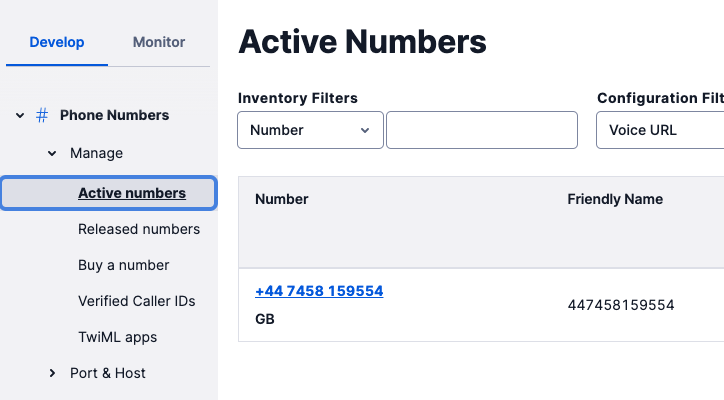
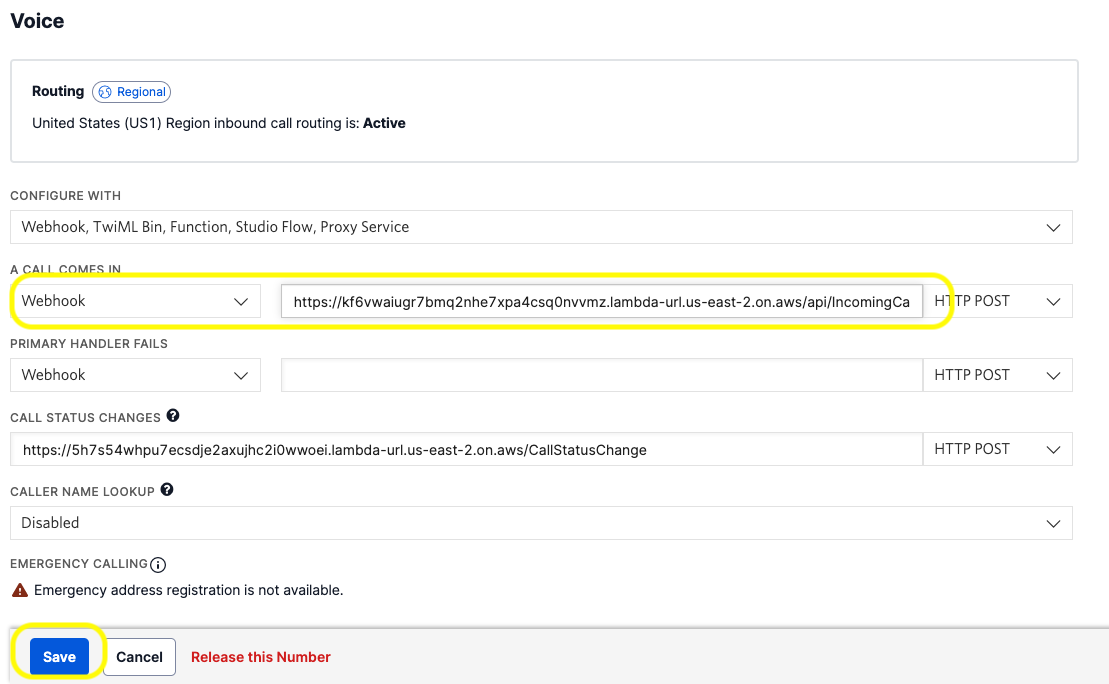
Go to Twilio Console, select your number and update the A Message Comes In section to webhook. Set the webhook URL to your ngrok URL followed by /IncomingSMS, for example, https://{some random number}.eu.ngrok.io/IncomingSms.

Now when you send an SMS to that number, your API will receive the message. Once you’ve tested and received an SMS response saying “Testing…” you can move on to the game implementation.

Implementing the Game

The game logic is simple. The user is expected either the commands play (starts a new game), exit (ends the existing game) or a number between 1 and 100.

The key to the implementation is state management. As you can imagine, normally, your application receives a new SMS every time. You can, of course, choose to store the state in a database, but for small amounts of data, you can use cookies.

You can use cookies with Twilio SMS just like you would normally use in a web application. They chose not to reinvent the wheel and stuck with the web standards (You can read more on Twilio cookies here).

In this implementation, it’s used like this:

if (userMessage == "play")
{
    currentGame = new Game();
    responseMessage = $"Welcome to number guessing game. Send your guesses between {Constants.MIN_NUMBER} and {Constants.MAX_NUMBER}";
    Response.Cookies.Append("GAME_DATA", JsonConvert.SerializeObject(currentGame));
}

The Game class just stores the target and guess count:

namespace HighLowNumbergame;

public class Game
{
    public int Target { get; set; } = new Random((int)DateTime.UtcNow.Ticks).Next(Constants.MIN_NUMBER, Constants.MAX_NUMBER + 1); // Ceiling is exclusive so add 1
    public int GuessCount { get; set; } = 0;
}

and the minimum and maximum numbers are defined in a file named Constants.cs:

public class Constants
{
    public const int MIN_NUMBER = 1;
    public const int MAX_NUMBER = 100;
}

Final step: Replace the controller code with the code below:

using Microsoft.AspNetCore.Mvc;
using Newtonsoft.Json;
using Twilio.AspNet.Core;
using Twilio.TwiML;

namespace HighLowNumbergame.Controllers;
 
[ApiController]
[Route("[controller]")]
public class IncomingSmsController : TwilioController
{
    Game currentGame;
    bool CHEAT_MODE = true;
    
    [HttpPost]
    public async Task<TwiMLResult> Index()
    {
        var form = await Request.ReadFormAsync();

        currentGame = ResumeOrCreateGame();
        
        var userMessage = form["Body"].ToString().Trim().ToLowerInvariant();
        var responseMessage = string.Empty;
        
        if (userMessage == "play")
        {
            currentGame = new Game();
            responseMessage = $"Welcome to number guessing game. Send your guesses between {Constants.MIN_NUMBER} and {Constants.MAX_NUMBER}";
            Response.Cookies.Append("GAME_DATA", JsonConvert.SerializeObject(currentGame));
        }
        else if (userMessage == "exit")
        {
            if (currentGame == null)
            {
                responseMessage = "No game in progress";
            }
            else
            {
                responseMessage = $"Quiting game. The target was {currentGame.Target}. You guesses {currentGame.GuessCount} times. Better luck next time!";
                Response.Cookies.Delete("GAME_DATA");                
            }
        }
        else if (int.TryParse(userMessage, out int guessedNumber))
        {
            if (currentGame == null)
            {
                responseMessage = "No game in progress";
            }
            else
            {
                if (guessedNumber < Constants.MIN_NUMBER || guessedNumber > Constants.MAX_NUMBER)
                {
                    responseMessage = $"Please guess between {Constants.MIN_NUMBER} and {Constants.MAX_NUMBER}";
                }
                else if (guessedNumber == currentGame.Target)
                {
                    currentGame.GuessCount++;
                    responseMessage = $"Congratulations!. You've guessed correctly in {currentGame.GuessCount} guesses.";
                    Response.Cookies.Delete("GAME_DATA");
                }
                else
                {
                    currentGame.GuessCount++;
                    
                    if (guessedNumber > currentGame.Target)
                    {
                        responseMessage = "Too high!";
                    }
                    else if (guessedNumber < currentGame.Target)
                    {
                        responseMessage = "Too low!";
                    }

                    Response.Cookies.Append("GAME_DATA", JsonConvert.SerializeObject(currentGame));
                }
            }
        }
        else
        {
            responseMessage = "Unknown command";
        }
        
        var messagingResponse = new MessagingResponse();

        if (CHEAT_MODE && currentGame != null)
        {
            responseMessage = $"{responseMessage}\n{JsonConvert.SerializeObject(currentGame)}";
        }

        messagingResponse.Message(responseMessage);
        return TwiML(messagingResponse);
    }

    private Game ResumeOrCreateGame()
    {
        var cookies = Request.Cookies;
        if (cookies.TryGetValue("GAME_DATA", out string rawGameJson))
        {
            return JsonConvert.DeserializeObject<Game>(rawGameJson);
        }

        return new Game();
    }
}

Now, run the application again, and you should be able to play the game. By default, I added a cheat mode flag that appends the game object to the output messages. This helps with debugging and testing.

Conclusion

In this post, I shared a small project I developed with Twilio SMS API. It was a fun little project, and I hope you enjoyed it as well. If you would like to get the full source code, you can clone my repository.

dev cli, interactive

In a previous article, we looked into how to develop your own CLI tools with dotnet CLI and CliFx library. This article builds on that knowledge and adds more advanced features of CliFx. It also adds a new library called Sharprompt to add interactive features to your CLI. Without further ado, let’s develop an interactive CLI.

Set up the project

First, clone the starter project to get the project up and running:

git clone https://github.com/volkanpaksoy/sendgrid-dynamic-template-email-manager-cli.git --branch 00-starter-project

Then, open the solution in your IDE and look at Program.cs:

using CliFx;

await new CliApplicationBuilder()
    .AddCommandsFromThisAssembly()
    .SetExecutableName("dtm")
    .SetDescription("CLI to manage SendGrid Dynamic Email Templates")
    .SetTitle("SendGrid Dynamic Email Template Manager")
    .Build()
    .RunAsync();

This setup is all it takes to add CliFx to the Console Application and convert it into a CLI. Next, run the application, and you should see a result as below:

Terminal window showing output of dotnet run command showing the application running as a CLI and showing the output of the help command

A nice feature of a dotnet CLI is that it can be installed globally on your computer so that you don’t have to navigate to the project folder every time to run it.

To convert a Console Application into an installable dotnet tool, you add the following three lines to the .csproj file (the highlighted lines 8-10):

<Project Sdk="Microsoft.NET.Sdk">
    <PropertyGroup>
        <OutputType>Exe</OutputType>
        <TargetFramework>net6.0</TargetFramework>
        <ImplicitUsings>enable</ImplicitUsings>
        <Nullable>enable</Nullable>
        <DockerDefaultTargetOS>Linux</DockerDefaultTargetOS>
        <PackAsTool>true</PackAsTool>
        <ToolCommandName>dtm</ToolCommandName>
        <PackageOutputPath>./nupkg</PackageOutputPath>
    </PropertyGroup>
    <ItemGroup>
      <PackageReference Include="CliFx" Version="2.2.6" />
    </ItemGroup>
</Project>

Now, run the following command to publish the project as a NuGet package under the ./nupkg folder:

dotnet pack

Finally, install the CLI by running the following command:

dotnet tool install --global --add-source ./nupkg DynamicTemplateManager.Cli

You should see that your CLI is now installed as a dotnet tool:

Terminal window showing the successful output of dotnet tool install command

Now you can open a terminal and run dtm as a command, and your application will run:

Terminal window showing the output of dtm command. It shows the help text of the CLI

At this point, you have a working CLI developed with the dotnet tool and CliFx, but you don’t have any functionality to manage SendGrid Dynamic Email Templates.

Set up SendGrid

To send Emails with SendGrid, you will need to have a SendGrid account, an API key and a valid sender email address or domain. Setting all these deserves a separate blog post. I will not add all those details in this article to keep the focus on developing the CLI. Instead, I recommend reading this article to complete the basic setup. The rest of the article is going to assume you completed these steps.

All commands that call the SendGrid API need access to an API key value. It’s best to leverage environment variables to avoid providing the API key every time you run a command.

Fortunately, CliFx supports Environment Variables. Therefore, we can create an option and give it an alternative environment variable name. If we don’t provide the parameter from the command line, it uses the value stored in the environment variable. To see this in action, create a new folder inside your solution called Commands. Then, under this folder, create a new file named SendGridCommandBase.cs and replace its contents with the code below:

using CliFx.Attributes;

namespace DynamicTemplateManager.Cli.Commands;

public abstract class SendGridCommandBase
{
    [CommandOption("sendgridApiKey", IsRequired = true, EnvironmentVariable = "SENDGRID_API_KEY")]
    public string SendGridApiKey { get; init; }
}

This class is going to be the base class of all SendGrid commands.

To test environment variables, create a temporary command in a file named EnvVarTestCommand.cs.

Replace the contents with the code below:

using CliFx;
using CliFx.Attributes;
using CliFx.Infrastructure;

namespace DynamicTemplateManager.Cli.Commands;

[Command]
public class EnvVarTestCommand : SendGridCommandBase, ICommand
{
    public ValueTask ExecuteAsync(IConsole console)
    {
        Console.WriteLine(SendGridApiKey);
        return default;
    }
}

Add an environment variable named SENDGRID_API_KEY to your system:

export SENDGRID_API_KEY=from_env_var

Now, run the application and provide the sendGridApiKey parameter as shown below:

dotnet run --sendgridApiKey from_cmd

The output should show from_cmd.

Rerun the application, but this time, don’t provide any parameters as shown below:

dotnet run

This time you should see from_env_var on your screen:

Terminal window showing the output of dotnet run. It shows when sendGridApiKey parameter is supplied it uses that. Otherwise it uses environment variable.

Implement the first CLI command

It’s time to get to the meat of the project. You are now going to implement the individual commands for the CLI.

First, delete the EnvVarTestCommand.cs file from the project. If you haven’t followed along so far and would like to start now, you can do that by checking out the branch called 01-sendgrid-configuration:

git checkout 01-sendgrid-configuration
git pull

In the Commands folder, create a subfolder named TemplateCommands, and inside it, create a file named ListTemplatesCommand.cs

Replace the contents of the new file with the code below:

using CliFx;
using CliFx.Attributes;
using CliFx.Infrastructure;

namespace DynamicTemplateManager.Cli.Commands.TemplateCommands;

[Command("list-templates")]
public class ListTemplatesCommand : ICommand
{
    public ValueTask ExecuteAsync(IConsole console)
    {
        Console.WriteLine("list-templates command");

        return default;
    }
}

Now run the application to see if the command is available to use:

dotnet run

The output should look like this:

Terminal window showing output of dotnet run. It shows list-templates command in the help text.

You can see the list-templates command is discovered by CliFx because we initially set it up as

.AddCommandsFromThisAssembly()

Another thing you might have noticed is that when you ran the application, it displayed the help output instead of executing the command. When you were testing the SendGrid API key, EnvVarTestCommand was executed automatically. The difference is that EnvVarTestCommand was decorated with

[Command]

EnvVarTestCommand didn’t have a name assigned to it, which made it the default command, whereas ListTemplatesCommand is decorated as below:

[Command("list-templates")]

To execute the list-templates command, you need to specify the command explicitly, as shown below:

dotnet run list-templates

Putting all SendGrid-related code in a separate service is good practice to make the code more testable. So first, create a solution folder named Services. Then, create two more folders under this folder: Interfaces and Impl. Under Interfaces, create a file named IDynamicTemplateService.cs; under the Impl folder, create a file named DynamicTemplateService.cs. Your solution structure at this point should look like this:

Rider IDE project structure showing all the classes and folders in the solution

Before you start calling SendGrid API, you need to add SendGrid dotnet SDK. Also, to display the results nicely in the console, add the ConsoleTables NuGet package. Finally, for this stage, you are going to refactor the Program.cs file and use dependency injection to instantiate commands and services. To achieve this, you will need Microsoft.Extensions.DependencyInjection and Microsoft.Extensions.Hosting packages.

Run the following code to add these packages to the project:

dotnet add package SendGrid
dotnet add package ConsoleTables
dotnet add package Microsoft.Extensions.DependencyInjection
dotnet add package Microsoft.Extensions.Hosting

Update the Program.cs file with the code below:

using CliFx;
using DynamicTemplateManager.Cli.Commands.TemplateCommands;
using DynamicTemplateManager.Cli.Services.Impl;
using DynamicTemplateManager.Cli.Services.Interfaces;
using Microsoft.Extensions.DependencyInjection;
using Microsoft.Extensions.Hosting;

using IHost host = Host.CreateDefaultBuilder(args)
    .ConfigureServices((hostBuilderContext, services) => services
        // Register services
        .AddTransient<IDynamicTemplateService, DynamicTemplateService>()
        
        // Register commands
        .AddTransient<ListTemplatesCommand>()
    )
    .Build();

await new CliApplicationBuilder()
    .AddCommandsFromThisAssembly()
    .SetExecutableName("dtm")
    .SetDescription("CLI to manage SendGrid Dynamic Email Templates")
    .SetTitle("SendGrid Dynamic Email Template Manager")
    .UseTypeActivator(host.Services)
    .Build()
    .RunAsync();
        

Update DynamicTemplateService.cs as below:

using DynamicTemplateManager.Cli.Services.Interfaces;
using Newtonsoft.Json.Linq;
using SendGrid;

namespace DynamicTemplateManager.Cli.Services.Impl;

public class DynamicTemplateService : IDynamicTemplateService
{
    public async Task<List<(string, string)>> ListTemplates(string apiKey)
    {
        var sendGridClient = new SendGridClient(apiKey);
        var queryParams = @"{
            'generations': 'dynamic',
            'page_size': 100
        }";
        
        var response = await sendGridClient.RequestAsync(
            method: SendGridClient.Method.GET,
            urlPath: $"templates",
            queryParams: queryParams
        );
        
        if (!response.IsSuccessStatusCode)
        {
            HandleFailedResponse(response);
        }
        
        var result = response.Body.ReadAsStringAsync().Result;
        var resultJson = JObject.Parse(result);
        
        var templateIdNameTuples = new List<(string, string)>();
        var templates = JArray.Parse(resultJson["result"].ToString());
        foreach (var template in templates)
        {
            templateIdNameTuples.Add((template["name"].ToString(), template["id"].ToString()));
        }

        return templateIdNameTuples;
    }
    
    private void HandleFailedResponse(Response response)
    {
        var result = response.Body.ReadAsStringAsync().Result;
        
        Console.WriteLine(response.StatusCode);
        Console.WriteLine(result);
        Console.WriteLine(response.Headers.ToString());

        throw new Exception($"API call failed with code {response.StatusCode}");
    } 
}

and update ListTemplatesCommand.cs file with the code below:

using CliFx;
using CliFx.Attributes;
using CliFx.Infrastructure;
using ConsoleTables;
using DynamicTemplateManager.Cli.Services.Impl;
using DynamicTemplateManager.Cli.Services.Interfaces;

namespace DynamicTemplateManager.Cli.Commands.TemplateCommands;

[Command("list-templates")]
public class ListTemplatesCommand : SendGridCommandBase, ICommand
{
    private readonly IDynamicTemplateService _dynamicTemplateService;

    public ListTemplatesCommand(IDynamicTemplateService dynamicTemplateService)
    {
        _dynamicTemplateService = dynamicTemplateService;
    }
    
    public ValueTask ExecuteAsync(IConsole console)
    {
        var templates = _dynamicTemplateService.ListTemplates(SendGridApiKey).Result;

        var table = new ConsoleTable("Template Name", "Template Id");
        
        foreach (var templateIdNameTuple in templates)
        {
            table.AddRow(templateIdNameTuple.Item1, templateIdNameTuple.Item2);
        }
        
        console.Output.Write(table.ToString());

        return default;
    }
}

Before you test the code, update the SENDGRID_API_KEY environment variable with the actual value:

export SENDGRID_API_KEY={ YOUR SENDGRID API KEY }

To test the code, run the list-templates command as shown below:

dotnet run list-templates

If all went well, you should see a successful result (an empty table is also a successful result) like this:

Terminal window showing successful output of list-templates command

If you are getting errors, you can compare your code to the finished version at this stage by checking out the branch:

git checkout 02-sendgrid-commands
git pull

To recap, you implemented your first CLI command by creating a class that implements the ICommand interface that comes with the CliFx library and decorating it with [Command(“command name”)] decorator.

Also, you implemented DynamicTemplateService, which will act as our SendGrid client to manage dynamic email templates.

Finally, you amended the original program setup to use dependency injection to instantiate commands and services.

Now you can move on to the details of Dynamic Template Service to get into SendGrid Dynamic Template API details.

Refactor DynamicTemplateService

Before diving into the API details, refactor the application a bit so it’s simplified.

Now that you’re using dependency injection, you can also read the environment variables at the start-up:

using IHost host = Host.CreateDefaultBuilder(args)
    .ConfigureServices((hostBuilderContext, services) => services
        // Register services
        .AddTransient<IDynamicTemplateService, DynamicTemplateService>()

        // Register commands
        .AddTransient<ListTemplatesCommand>()
    
        // Configure settings
        .Configure<SendGridSettings>(hostBuilderContext.Configuration.GetSection("SendGridSettings"))
    )
    .Build();

So that we can have SendGridSettings injected into the DynamicTemplateService:

private readonly SendGridSettings _sendGridSettings;

public DynamicTemplateService(IOptions<SendGridSettings> sendGridSettings)
{
    _sendGridSettings = sendGridSettings.Value;
}

public async Task<List<(string, string)>> ListTemplates()
{
    var sendGridClient = new SendGridClient(_sendGridSettings.ApiKey);
// ...

This way, you don’t need SendGridCommandBase.cs. Delete it from the project and remove its reference from the ListTemplatesCommand class:

public class ListTemplatesCommand : ICommand

Since you are no longer passing the API key to the ListTemplates method, you can also simplify the interface as follows:

Task<List<(string, string)>> ListTemplates();

After refactoring, rerun the project and ensure the list-templates command still works.

Before moving on to implementing the CLI commands, there is one more refactoring you should do: Inject SendGridClient using dependency injection and SendGrid.Extensions.DependencyInjection library.

First, run the following command to install the library:

dotnet add package SendGrid.Extensions.DependencyInjection

Update constructing the builder section in Program.cs as below:

using IHost host = Host.CreateDefaultBuilder(args)
    .ConfigureServices((hostBuilderContext, services) => services
        // Register services
        .AddTransient<IDynamicTemplateService, DynamicTemplateService>()

        // Register commands
        .AddTransient<ListTemplatesCommand>()
        
        // Register SendGridClient
        .AddSendGrid(options => options.ApiKey = hostBuilderContext.Configuration["SendGridSettings:ApiKey"])
    )
    .Build();

Notice how we don’t need to read the ApiKey and pass it on to the DynamicTemplateService anymore. It’s handled when the SendGridClient is instantiated. So go ahead and remove the Configuration folder and SendGridSettings class inside it.

Update DynamicTemplateService.cs constructor and variable initialization section with the code below:

private readonly ISendGridClient _sendGridClient;

public DynamicTemplateService(ISendGridClient sendGridClient)
{
    _sendGridClient = sendGridClient;
}

Now you can remove all the manual SendGridClient instantiations and replace them with the private variable, such as this:

public async Task<List<(string, string)>> ListTemplates()
{
    var queryParams = @"{
        'generations': 'dynamic',
        'page_size': 100
    }";
    
    var response = await _sendGridClient.RequestAsync(
        method: SendGridClient.Method.GET,
        urlPath: "templates",
        queryParams: queryParams
    );
// ...

Notice in line 8 _sendGridClient is used now. Repeat this replacement in all the methods.

This way, the code is more concise. Finally, rerun the application and confirm the list-templates command still works.

You can get the latest version of the code up until this point by checking out 03-dynamic-template-service by running the following command:

git checkout 03-dynamic-template-service
git pull

Implement all API Calls for Dynamic Template Manager CLI

Now it’s time to get into the details of the SendGrid API calls. To send requests to the SendGrid API, you can use the RequestAsync method on the SendGridClient class. Depending on the operation, you need to provide the HTTP method, endpoint URL, request body and query params.

List Templates

You already implemented the List Templates command in the previous section, so first, let’s look at the API call behind that command:

var queryParams = @"{
    'generations': 'dynamic',
    'page_size': 100
}";

var response = await _sendGridClient.RequestAsync(
    method: SendGridClient.Method.GET,
    urlPath: "templates",
    queryParams: queryParams
);

Create Template

To create a new template, you need to send a POST request to the templates endpoint. 

The following snippet shows the data and API call to create a new template:

var data = new
{
    name = templateName, 
    generation = "dynamic"
};
  
var response = await _sendGridClient.RequestAsync(
    method: SendGridClient.Method.POST,
    urlPath: "templates",
    requestBody: JsonConvert.SerializeObject(data)
);

The default value of the generation parameter is legacy, so make sure you set this value to dynamic to ensure the template supports dynamic replacement.

Update Template

You can only update the template’s name once it’s been created. You can do this by sending a PATCH request to the templates/{templateId} endpoint:

var data = new
{
    name = templateName,
};

var response = await _sendGridClient.RequestAsync(
    method: SendGridClient.Method.PATCH,
    urlPath: $"templates/{templateId}",
    requestBody: JsonConvert.SerializeObject(data)
);

Delete Template

Deleting the template is very similar to getting the template details. You send a request to the templates/{templateId} endpoint. The difference is you use the DELETE HTTP method, as shown in the snippet below:

var response = await _sendGridClient.RequestAsync(
    method: SendGridClient.Method.DELETE,
    urlPath: $"templates/{templateId}"
);

Duplicate Template

You send a POST request to the templates/{templateId} endpoint to duplicate an existing template. You also provide the new name of the duplicated template as shown below:

var data = new
{
    name = templateName
};

var response = await _sendGridClient.RequestAsync(
    method: SendGridClient.Method.POST,
    urlPath: $"templates/{templateId}",
    requestBody: JsonConvert.SerializeObject(data)
);

List Versions

To get the version of a specific template, you send a GET request to the templates/{templateId} endpoint, where you provide the template id as shown below:

var response = await _sendGridClient.RequestAsync(
    method: SendGridClient.Method.GET,
    urlPath: $"templates/{templateId}"
);

The versions are listed as an array, so you parse with JArray.Parse(). Only names and ids are needed, so only those fields are returned in this example. There are more fields returned by the API, such as whether or not the version is active and the last time it was updated.

Create Version

You can create a new version by sending a POST request to the “templates/{templateId}/versions” endpoint:

var data = new
{
    template_id = templateId,
    active = 1,
    name = versionName,
    html_content = htmltemplateData,
    generate_plain_content = false,
    subject = "",
    editor = "code"
};

var response = await _sendGridClient.RequestAsync(
    method: SendGridClient.Method.POST,
    urlPath: $"templates/{templateId}/versions",
    requestBody: JsonConvert.SerializeObject(data)
);

The request generation is similar to creating a template that you saw earlier. The main difference is the endpoint. This request is sent to the templates/{templateId}/versions endpoint, where the template id is the id of your template.

Another difference is that you read the complete HTML data from the file and send it to the SendGrid API as our template. Also, note that we set the code value to the editor property. You also make the version active by setting the active property to 1.

Update Version

When you make changes to your template HTML, you don’t need to keep creating new versions. You can update an existing version with your updated HTML. The code below sends the request to update an existing template:

var data = new
{
    template_id = templateId,
    active = 1,
    name = versionName,
    html_content = htmltemplateData,
    generate_plain_content = false,
    subject = ""
};

var response = await _sendGridClient.RequestAsync(
    method: SendGridClient.Method.PATCH,
    urlPath: $"templates/{templateId}/versions/{versionId}",
    requestBody: JsonConvert.SerializeObject(data)
);

You specify the template and version ids in the endpoint URL: “templates/{templateId}/versions/{versionId}”

Other than the endpoint, it looks like creating a new version. However, there is one key difference: the editor property. 

Notice in the code above that you don’t set editor. If you set it to code just like creating a new version, you get the following error:

You cannot switch editors once a dynamic template version has been created.

Even if you specify the same value, it still gives this error, so it looks like it doesn’t check what the original value is. In the end, changing the editor when updating the version is not supported. So as soon as the API sees this value in the request, it rejects it.

Delete Version

You can also delete a version by sending a GET request to the templates/{templateId}/versions/{versionId} endpoint as shown below:

var response = await _sendGridClient.RequestAsync(
    method: SendGridClient.Method.DELETE,
    urlPath: $"templates/{templateId}/versions/{versionId}"
);

More On Transactional Templates API

The sample project and this article show how to use some API endpoints to manage your dynamic email templates. Please check out the official API documentation to learn more about all the operations supported by the SendGrid API.

Implement all CLI Commands

By this point, you have a good understanding of how a CLI command is implemented. For example, the list-templates command does not require parameters. However, some commands do need parameters. For example, if you want to list the versions of a template, you need to pass the template id to the SendGrid API. You can achieve this with the current setup, but you would have to copy/paste the template id from the list-templates command output every time. Alternatively, you can go to the SendGrid dashboard and find your template id there, but there is always an extra step involved.

This is where Sharprompt comes in. It is a library to make your CLI interactive. This way, we can display all the templates in your account and pass the selected template’s id to the SendGrid API. This approach eliminates the need to copy/paste the id from another source, making your CLI more user-friendly.

First, install the library:

dotnet add package Sharprompt

Under the TemplateCommands folder, add a new file called ListVersionsCommand.cs and replace the contents with the code below:

using CliFx;
using CliFx.Attributes;
using CliFx.Infrastructure;
using ConsoleTables;
using DynamicTemplateManager.Cli.Services.Interfaces;
using Sharprompt;

namespace DynamicTemplateManager.Cli.Commands.TemplateCommands;

[Command("list-versions")]
public class ListVersionsCommand : ICommand
{
    private readonly IDynamicTemplateService _dynamicTemplateService;

    public ListVersionsCommand(IDynamicTemplateService dynamicTemplateService)
    {
        _dynamicTemplateService = dynamicTemplateService;
    }
    
    public ValueTask ExecuteAsync(IConsole console)
    {
        var templates = _dynamicTemplateService.ListTemplates().Result;
        if (templates.Count == 0)
        {
            throw new ArgumentException("No available templates. Please create a template first.");
        }

        var templateName = Prompt.Select("Please select a template", templates.Select(t => t.Item1).OrderBy(t => t).ToList());
        var templateId = templates.First(t => t.Item1 == templateName).Item2;
        
        var versions = _dynamicTemplateService.ListVersions(templateId).Result;

        var table = new ConsoleTable("Template Name", "Version Name", "Version Id");
        
        foreach (var versionIdNameTuple in templates)
        {
            table.AddRow(templateName, versionIdNameTuple.Item1, versionIdNameTuple.Item2);
        }
        
        console.Output.WriteLine(table.ToString());
        return default;
    }
}

Notice on line 28 you are prompting the user to select one of the existing templates. When you run the application, the output should look like this:

Terminal window showing output of list-versions command. User is prompted to select an existing template from a list.

After you’ve chosen a template, it should fetch the versions of that template and display them in a table:

Terminal window showing the successful output of versions of a template listed on the screen in table format.

The rest of the commands follow a similar pattern. You can check out the branch 04-cli-commands to get the code so far:

git checkout 04-cli-commands
git pull

Update the final CLI with the dotnet tool

Now, bring it home and update your installed CLI so you can run it anywhere in a terminal window. Run the following commands to get the final version of the project and update the installed tool:

git checkout main
git pull
dotnet pack
dotnet tool update --global --add-source ./nupkg DynamicTemplateManager.Cli

Next, open a new terminal and run the following command to see the available commands:

dtm

Your output should look like this:

Terminal window showing the default help text and listing all the available commands

You can now use your CLI to manage your templates 🎉.

Conclusion

Congratulations! You’ve made it this far, which means you implemented a complete interactive CLI to manage your SendGrid Dynamic Email Templates. In addition, you learned how to use CliFx and Sharprompt libraries and the dotnet tool to install and update your CLI.

I hope you enjoyed this tutorial as much as I enjoyed writing it.

Resources