How to send RSS feed digest email with C# and SendGrid Dynamic Email Templates
This article was originally published on the Twilio Blog.
In this article, you will learn how to create a nicely formatted dynamic email using the Twilio Blog RSS feed as source data and send it via the SendGrid API. You will first look into creating the template with test data. Then you will learn how to parse RSS and HTML and send the emails with dynamic data.
Prerequisites
You’ll need the following things for this tutorial:
-
A free Twilio SendGrid account. Sign up for a SendGrid account here to send up to 100 emails per day completely free of charge
-
An OS that supports .NET (Windows/macOS/Linux)
-
A code editor or IDE (Recommended: Visual Studio Code with the C# plugin, Visual Studio, or JetBrains Rider)
-
SendGrid API key (See Manage SendGrid API Keys)
-
A verified Sender email or domain to send emails from (See Adding a Sender)
Create a Dynamic Email Template
Follow the steps below to create the dynamic email template for RSS feed digest email:
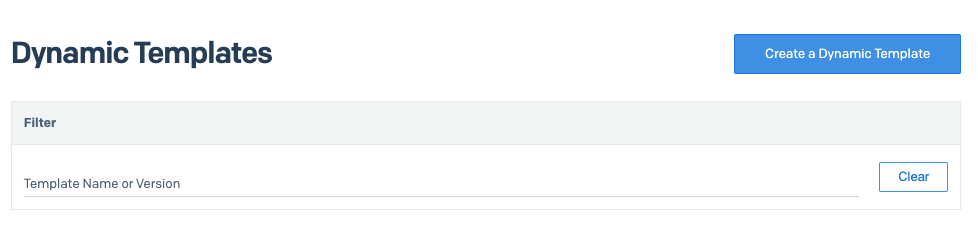
Go to the Dynamic Templates dashboard and click Create a Dynamic Template.
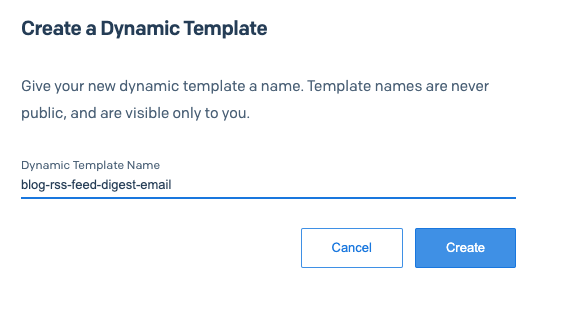
Enter the name of your template (e.g. blog-rss-feed-digest-email) and click Create.
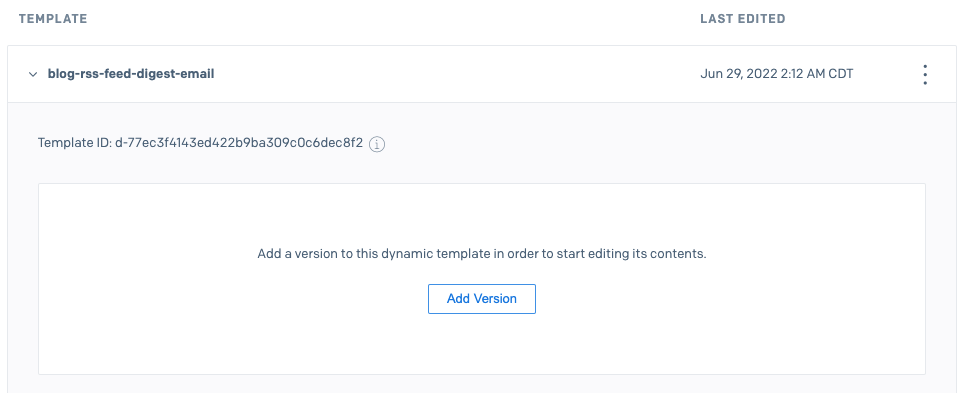
Expand your template and click Add Version.
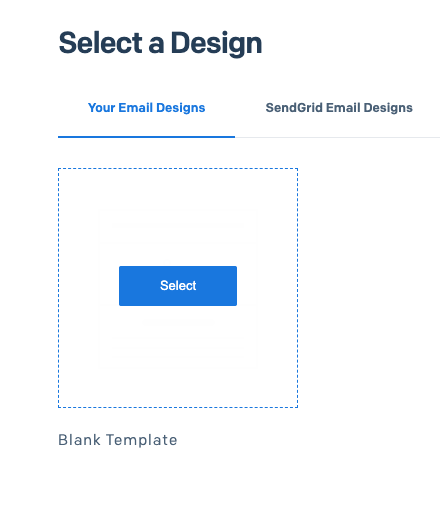
Hover over Blank Template and click the Select button.
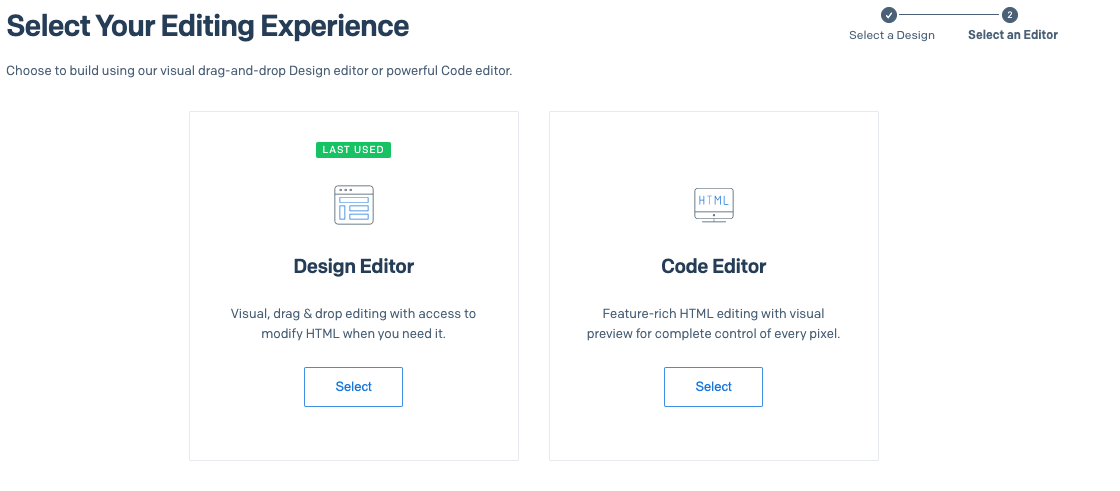
Click the Select button in the Design Editor section.
Update Version Name to version-1, and then update the Subject to {{subject}}.
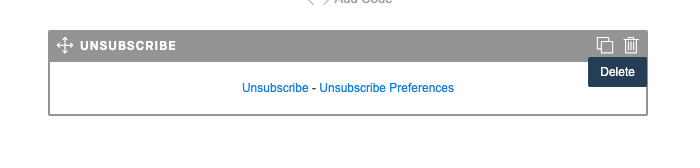
Delete the Unsubscribe module by hovering over it and clicking the trash can icon.
Confirm the deletion by clicking Confirm button in the dialog box.
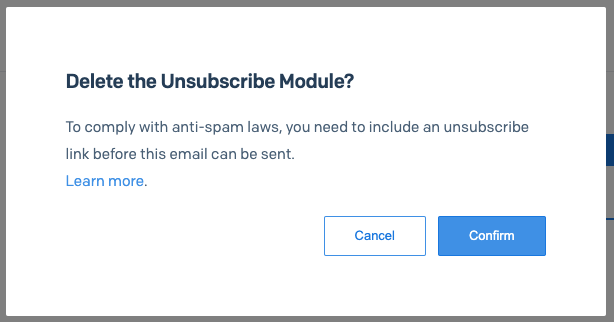
!!!warning
The sample application shown in this article is meant to be used for learning purposes only. It’s meant to send emails to yourself. If you intend to send emails to third parties, make sure to click Learn more button in the dialog or visit SendGrid documentation on Global Unsubscribes and Group Unsubscribes.
!!!
Now click the Build tab and drag the Code module into the design area that says Drag Module Here.
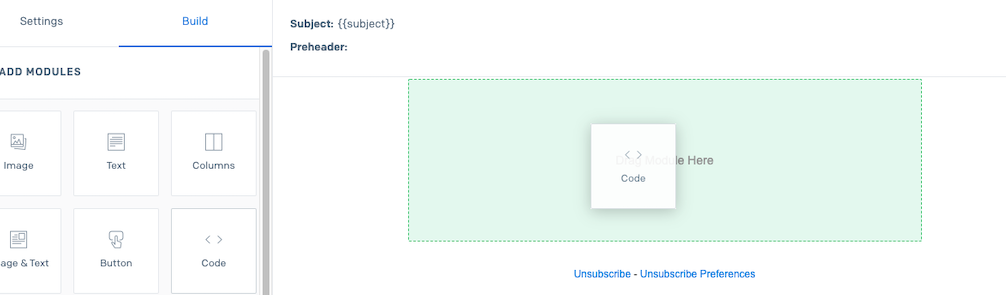
The edit module screen will automatically appear. Paste the following code inside the editor and click Update.
<!DOCTYPE html>
<html lang="en">
<head>
    <meta charset="UTF-8">
    <style>
        body { background-color: lightyellow; }
        h2, h3 { color: green; margin-left: 40px; }
        table { border-collapse: collapse; }
        tr.separated td { border-top: 1px dashed black; padding: 5px; }
        a { text-decoration: none; }
        .postTitle { font-size: 20px; }
        .readMoreButton {
            background-color: #04AA6D;
            border: none;
            color: white;
            padding: 8px;
            text-align: center;
            text-decoration: none;
            display: inline-block;
            font-size: 12px;
            margin: 4px 2px;
            cursor: pointer;
            border-radius: 2px;
        }
        .headerImage { padding-right: 10px; }
    </style>
</head>
<body>
<div>
    <h2>Hello, {{recipientName}}</h2>
    <h3>Here are the latest blog posts from Twilio Blog:</h3>
    {{#each blogPostList}}
    <table>
        <tr class="separated">
            <td><img class="headerImage" src="{{this.headerImageUrl}}" width="200" height="112"></td>
            <td>
                <a class="postTitle" href="{{this.Link}}"> {{this.title}} </a>
                <p>by <b>{{this.author}}</b> - <b>{{this.publishDate}}</b></p>
                {{#if this.categories}}
                    <p>Categories: {{this.categories}}</p>
                {{/if}}
                <p>{{{this.description}}}</p>
                <p>
                    <a class="readMoreButton" href="{{this.link}}">Read more</a>
                </p>
            </td>
        </tr>
    </table>
    {{/each}}
</div>
<div>
    <h2>Last Build Date: {{lastBuildDate}}</h2>
</div>
</body>
</html>
Click Save in the top menu.
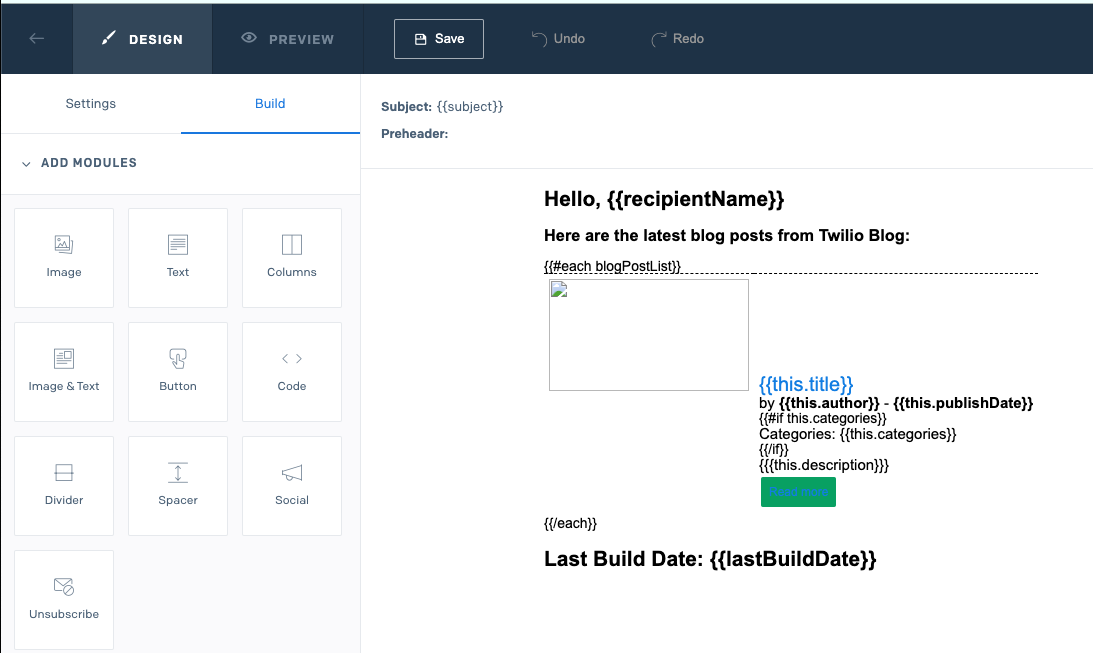
Handlebars Templating Language
SendGrid uses the Handlebars Templating Language to handle variable substitution and add some logic to the templates. You can find all the supported features on SendGrid documentation: Using Handlebars. You might also want to check out this article which also uses Handlebars templating.
Let me show you some of the Handlebars features used in the dynamic email template.
Conditionals
Twilio blog posts can belong to multiple categories. Also, in some cases, they don’t have any categories. So, instead of showing a blank Categories line in the email, you can hide the line if the post does not have any categories.
To check if a string is empty or not, we can use a simple if statement as shown below:
{{#if this.Categories}}
  <p>Categories: {{this.Categories}}</p>
{{/if}}
If the value of this.Categories variable is an empty string, it evaluates to false. In that case, the p element will be hidden.
HTML Injection
As you will see later in the Parsing HTML section, the full HTML post is included in the XML, and you will parse the first paragraph as HTML. In the email, you need to embed this block as HTML; otherwise, it would look broken if other HTML elements were inside the paragraph.
To inject HTML, you can just use triple curly braces as shown below:
<p>{{{this.Description}}}</p>
!!!warning
Keep in mind that whenever you are using three curly braces, the variable will not be encoded and susceptible to HTML injection. If this variable holds user input, this can be risky!
Make sure to use the HtmlEncoder in .NET to encode user input before passing it into the three curly braces.
!!!
Iterations
In the example, you will send an RSS feed digest, meaning there will be multiple blog post sections in the email. Handlebars supports arrays and iterations. You can access each item in the array by using the each keyword. In the example, you did this for the blogPostList array:
{{#each blogPostList}}
…
<p>{{{this.Description}}}</p>
…
{{/each}}
Between {{#each blogPostList}} and {{/each}}, you can access each item in the array by using the this keyword.
Test the Template
The SendGrid designer allows you to preview the rendered output by using hard-coded test data. This is a handy feature as you get to see all the variable substitutions in action right in the designer.
To test your template, click the Preview button in the top menu. You should see something like this:
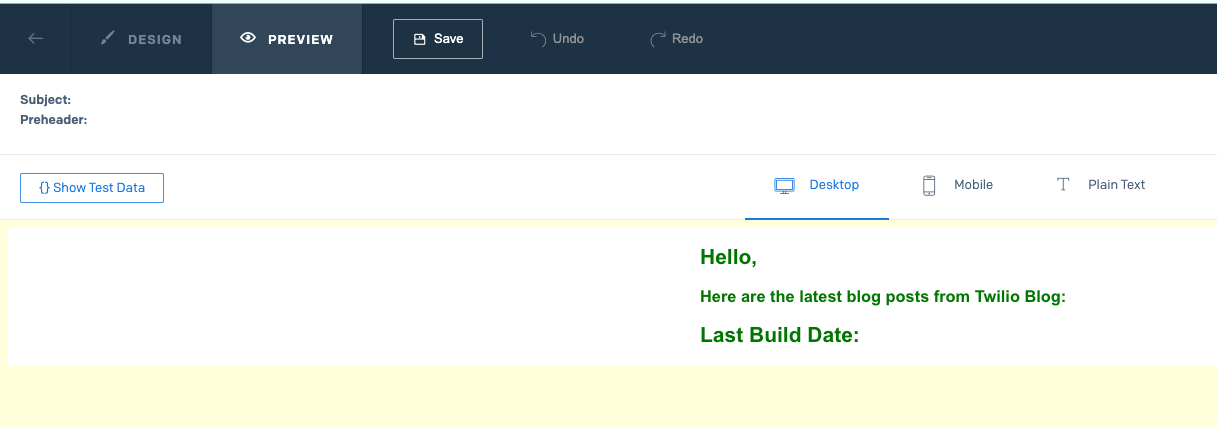
Next, click Show Test Data to open the data panel on the left.
I obtained some test data manually from the actual Twilio Blog to make the test more realistic. Paste the following JSON into the data panel:
{
  "subject": "Latest Posts - 07 July 2022",
  "recipientName": "Volkan",
  "lastBuildDate": "7 July 2022, 12:34",
  "blogPostList": [
    {
      "title": "Automatically Forward Text Messages with No Code Using Twilio Studio",
      "link": "https://www.twilio.com/blog/automatically-forward-text-messages-no-code-studio",
      "headerImageUrl": "https://twilio-cms-prod.s3.amazonaws.com/images/Copy_of_C03_Blog_Text_2.width-808.png",
      "description": "This article explains how to forward any incoming text messages sent to your Twilio phone number to another number automatically using a no-code solution called Twilio Studio.",
      "author": "Ashley Boucher",
      "publishDate": "06 July 2022",
      "categories": [
        "Code, Tutorials and Hacks"
      ]
    },
    {
      "title": "Super SIM now offers VPN connectivity for your IoT devices",
      "link": "https://www.twilio.com/blog/vpn-iot-devices",
      "headerImageUrl": "https://twilio-cms-prod.s3.amazonaws.com/images/VPN_-_Social_Banner.width-808.png",
      "description": "I am excited to announce that Super SIM now has VPN (Virtual Private Network) support, enabling you to set up secure private networks between Twilio and your application data centers and have your Super SIM connected devices use these private networks. With regular Internet breakout, the traffic from devices using Super SIM will go over the Internet and get routed to your application data center. When VPN is used, the same traffic is sent over a secure and private tunnel as shown below:",
      "author": "Vijay Devarapalli",
      "publishDate": "06 July 2022",
      "categories": []
    }
  ]
}
You should now see the rendered output on the right-hand side:
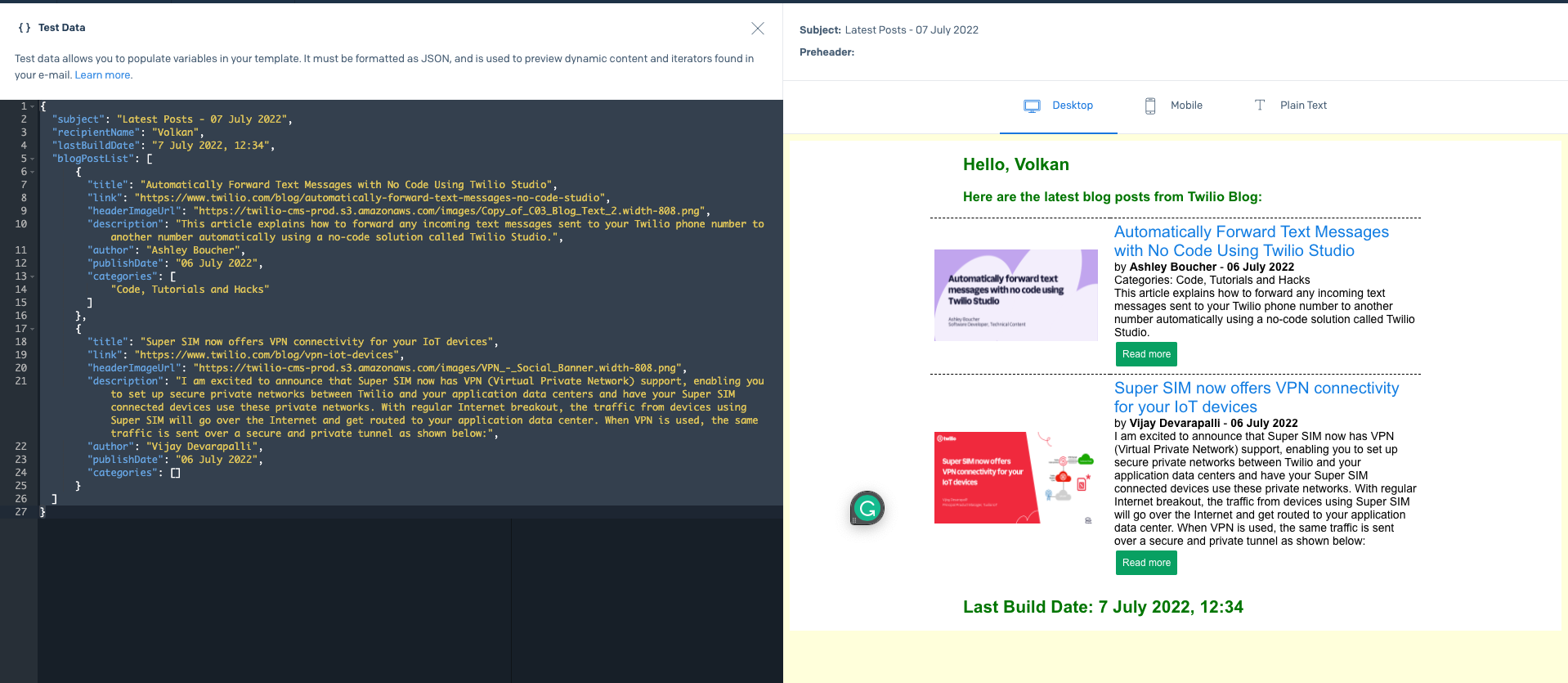
As you can see, by using the preview feature, you can see the final output without writing any code and sending any emails. Even though the preview is quite accurate, you might want to see it in your inbox as an email. You can also do that in the designer.
Click the Design button on the top menu.
Then, expand Test Your Email section on the left panel:
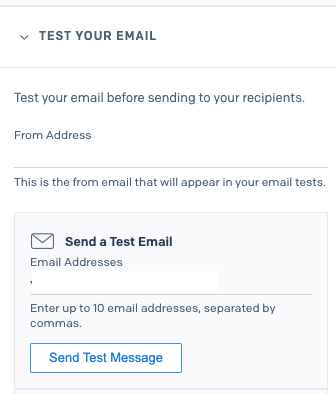
By default, the From Address field is populated by the email address you used when you created your SendGrid account. However, you can replace it with your verified sender address if you like.
Fill in the Email Addresses field with your recipient’s email address. You can test up to 10 recipients.
Click Send Test Message button. Then, check your inbox, and you should see an email that looks like this:
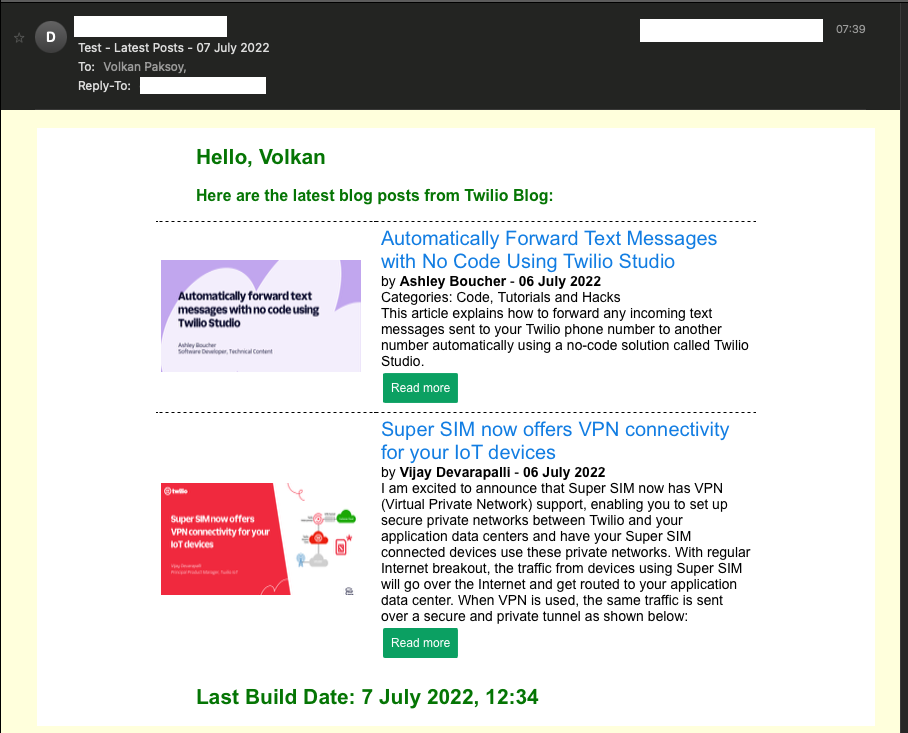
It looks like the real thing, except that SendGrid prepends the subject with “Test - “.
So far, you have developed an email template, reviewed the rendered output and sent out actual emails using the designer. Now, it’s time to write some code to send the emails programmatically using the same hard-coded data.
Set up your Project to Send Emails
This tutorial will start from an existing git repository. To get the application up and running, follow the steps below:
Clone the GitHub repository:
git clone https://github.com/Dev-Power/send-rss-feed-digest-email-with-sendgrid-dynamic-templates.git --branch 00-starter-project
Alternatively, you can open the repository, switch to the 00-starter-project branch and then click Code and Download ZIP button.
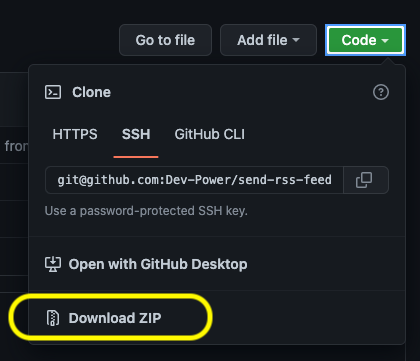
As a third option, you can download the zip file by clicking on this link.
Navigate into the project folder:
cd send-rss-feed-digest-email-with-sendgrid-dynamic-templates
cd src/RssFeedDigestEmailer.Cli
To store your SendGrid API key securely, add it to the project user secrets by running the following command:
dotnet user-secrets set SendGridSettings:ApiKey [YOUR_SENDGRID_API_KEY]
Replace [YOUR SENDGRID API KEY] with the SendGrid API key you created earlier.
Update appsettings.json and configure the email settings sections:
"emailSettings": {
    "senderEmailAddress": "",
    "senderDisplayName": "",
    "recipientEmailAddress": "",
    "recipientDisplayName": "",
    "templateId": ""
}
Update
-
senderEmailAddresswith your SendGrid sender email address, -
senderDisplayNamewith any name that you would like the recipient to see, -
recipientEmailAddresswith the email address you want to email, -
recipientDisplayNamewith the name of the recipient, -
and the
templateIdwith the ID of the template you created earlier. You can obtain the Template ID by expanding it in the dashboard:
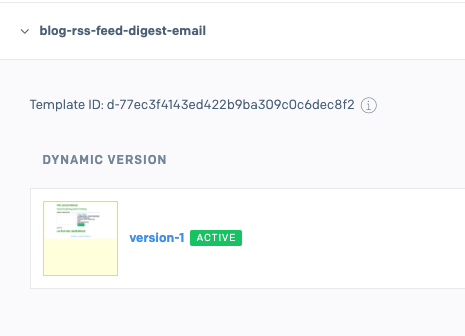
Now that the project has been set up, review the important parts of the code.
Currently, the project contains an EmailService class to talk to the SendGrid API using the SendGridClient class. It uses a data provider to get the template data. In this example, you have a JsonDataProvider class that looks like this:
public async Task<object> GetEmailData()
{
    string jsonFilePath = "./Data/DummyData.json";
    string rawContents = await File.ReadAllTextAsync(jsonFilePath);
    return JsonConvert.DeserializeObject(rawContents);
}
It reads the data from a hard-coded JSON file named DummyData.json under the Data folder. The contents of DummyData.json are exactly the same as you used in the designer preview.
Having a separate provider for data makes the email service data-agnostic. The SendTemplatedEmail implementation looks like this:
public async Task SendTemplatedEmail()
{
    var dynamicEmailData = await _dataProvider.GetEmailData();
    var from = new EmailAddress(_emailSettings.SenderEmailAddress, _emailSettings.SenderDisplayName);
    var to = new EmailAddress(_emailSettings.RecipientEmailAddress, _emailSettings.RecipientDisplayName);
    var msg = MailHelper.CreateSingleTemplateEmail(from, to, _emailSettings.TemplateId, dynamicEmailData);
    var response = await _sendGridClient.SendEmailAsync(msg);
    if (response.IsSuccessStatusCode)
    {
        Console.WriteLine("Email has been sent successfully");
    }
}
As the email service does not construct the template data itself, you can use different data by swapping out JsonDataProvider with new classes that implement the IDataProvider interface.
The main program is set up like this:
using IHost host = Host.CreateDefaultBuilder(args)
    .ConfigureHostConfiguration(config =>
    {
        config
            .AddUserSecrets(Assembly.GetExecutingAssembly(), true, false);
    })
    .ConfigureServices((hostBuilderContext, services) =>
    {
        services
            .AddTransient<IEmailService, EmailService>()
            .AddTransient<IDataProvider, JsonDataProvider>();
        services
            .AddSendGrid(options => options.ApiKey = hostBuilderContext.Configuration["SendGridSettings:ApiKey"]);
        services
            .Configure<EmailSettings>(hostBuilderContext.Configuration.GetSection("EmailSettings"));
    })
    .Build();
var emailService = (EmailService) ActivatorUtilities.CreateInstance(host.Services, typeof(EmailService));
await emailService.SendTemplatedEmail();
You can see in the setup, user secrets are added to the configuration by calling the AddUserSecrets method. This is required to read the API key from .NET user secrets as you configured in the previous section.
Also, SendGridClient is added to the Dependency Injection (DI) Container using the SendGrid.Extensions.DependencyInjection NuGet package. This way, you don’t have to instantiate the SendGridClient object manually inside the EmailService.
Finally, note that JsonDataProvider is registered for the IDataProvider interface. When you implement getting dynamic data from the RSS feed, you will only have to change the line below, and you won’t have to touch the EmailService:
.AddTransient<IDataProvider, JsonDataProvider>();
Now that you’ve covered the main parts of the application, go ahead and run by running the command:
dotnet run
If all goes well, you should receive an email shortly that looks like this:
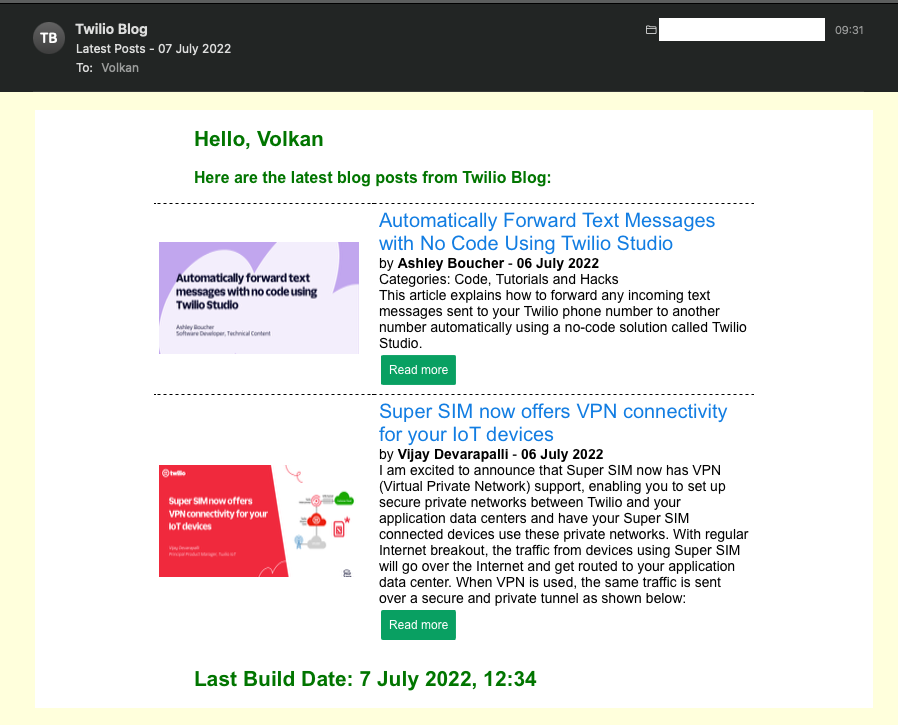
It’s almost identical to the one you sent using the SendGrid dashboard, except that the subject is not prepended with “Test - ”.
Next, you will learn how to get the Twilio Blog RSS feed, obtain relevant data from XML and blog post HTML pages, and prepare the dynamic data for the email template.
Get the Twilio Blog RSS Feed
To follow the code explanations below, check out the latest code. While still in the project folder, run:
git checkout main
Alternatively, follow the instructions below to get to the last version of the code:
Under the Services folder, create a new file named TwilioBlogDataProvider.cs and replace its contents with the following:
using Microsoft.Extensions.Options;
using RssFeedDigestEmailer.Cli.Configuration;
using RssFeedDigestEmailer.Cli.Services.Interfaces;
namespace RssFeedDigestEmailer.Cli.Services;
public class TwilioBlogDataProvider : IDataProvider
{
    private readonly IRssService _rssService;
    private readonly EmailDataSettings _emailDataSettings;
    public TwilioBlogDataProvider(IRssService rssService, IOptions<EmailDataSettings> emailDataSettings)
    {
        _rssService = rssService;
        _emailDataSettings = emailDataSettings.Value;
    }
    public async Task<object> GetEmailData()
    {
        var blogInfo = await _rssService.GetBlogInfo();
        return new
        {
            recipientName = _emailDataSettings.RecipientName,
            subject = $"{_emailDataSettings.SubjectPrefix} - {FormatDate(DateTime.Today)}",
            lastBuildDate = FormatDate(blogInfo.LastBuildDate, showTime: true),
            blogPostList = blogInfo.BlogPosts.Select(b => new
            {
                title = b.Title,
                link = b.Link,
                headerImageUrl = b.HeaderImageUrl,
                description = b.Description,
                author = b.Author,
                publishDate = FormatDate(b.PublishDate),
                categories = string.Join("; ", b.Categories)
            })
        };
        string FormatDate(DateTime date, bool showTime = false)
        {
            return (showTime) ? date.ToString("dd MMMM yyyy, HH:mm") : date.ToString("dd MMMM yyyy");
        }
    }
}
Under Services/Interfaces, create IRssService.cs and paste the following code:
using RssFeedDigestEmailer.Cli.Models;
namespace RssFeedDigestEmailer.Cli.Services.Interfaces;
public interface IRssService
{
    Task<BlogInfo> GetBlogInfo();
}
Under Services, create RssService.cs and paste the following code:
using System.Xml;
using Microsoft.Extensions.Options;
using RssFeedDigestEmailer.Cli.Configuration;
using RssFeedDigestEmailer.Cli.Models;
using RssFeedDigestEmailer.Cli.Services.Interfaces;
namespace RssFeedDigestEmailer.Cli.Services;
public class RssService : IRssService
{
    private readonly IHtmlService _htmlService;
    private readonly IHttpClientFactory _httpClientFactory;
    private readonly RssSettings _rssSettings;
    public RssService(IHtmlService htmlService, IHttpClientFactory httpClientFactory, IOptions<RssSettings> rssSettings)
    {
        _htmlService = htmlService;
        _rssSettings = rssSettings.Value;
        _httpClientFactory = httpClientFactory;
    }
    public async Task<BlogInfo> GetBlogInfo()
    {
        var httpClient = _httpClientFactory.CreateClient("RssServiceHttpClient");
        using (HttpResponseMessage response = await httpClient.GetAsync(_rssSettings.FeedUrl))
        using (var rawRssFeedStream = await response.Content.ReadAsStreamAsync())
        {
            var xmlDocument = new XmlDocument();
            xmlDocument.Load(rawRssFeedStream);
            var blogInfo = new BlogInfo();
            XmlNode lastBuildDateNode = xmlDocument.SelectSingleNode("/rss/channel/lastBuildDate");
            blogInfo.LastBuildDate = DateTime.Parse(lastBuildDateNode.InnerText);
            XmlNodeList itemNodeList = xmlDocument.SelectNodes("/rss/channel/item");
            XmlNamespaceManager xmlNamespaceManager = new XmlNamespaceManager(xmlDocument.NameTable);
            xmlNamespaceManager.AddNamespace("dc", "http://purl.org/dc/elements/1.1/");
            for (int i = 0; i < itemNodeList.Count; i++)
            {
                XmlNode titleNode = itemNodeList[i].SelectSingleNode("title");
                XmlNode linkNode = itemNodeList[i].SelectSingleNode("link");
                XmlNodeList categoryNodes = itemNodeList[i].SelectNodes("category");
                XmlNode descriptionNode = itemNodeList[i].SelectSingleNode("description");
                XmlNode authorNode = itemNodeList[i].SelectSingleNode("dc:creator", xmlNamespaceManager);
                var headerImageUrlAndPublishDate = await _htmlService.GetHeaderImageUrlAndPostDate(linkNode.InnerText);
                var blogPost = new BlogPost
                {
                    Title = titleNode.InnerText,
                    Link = linkNode.InnerText,
                    Categories = categoryNodes.Cast<XmlNode>().Select(node => node.InnerText).ToList(),
                    Author = authorNode.InnerText,
                    HeaderImageUrl = headerImageUrlAndPublishDate.Item1,
                    Description = await _htmlService.GetPostIntroduction(descriptionNode.InnerText),
                    PublishDate = DateTime.Parse(headerImageUrlAndPublishDate.Item2)
                };
                blogInfo.BlogPosts.Add(blogPost);
            }
            return blogInfo;
        }
    }
}
Under Services/Interfaces, create IHtmlService.cs and paste the following code:
namespace RssFeedDigestEmailer.Cli.Services.Interfaces;
public interface IHtmlService
{
    Task<(string, string)> GetHeaderImageUrlAndPostDate(string blogPostUrl);
    Task<string> GetPostIntroduction(string rawPostHtml);
}
Under Services, create HtmlService.cs and paste the following code:
using AngleSharp;
using AngleSharp.Dom;
using AngleSharp.Html.Parser;
using RssFeedDigestEmailer.Cli.Services.Interfaces;
namespace RssFeedDigestEmailer.Cli.Services;
public class HtmlService : IHtmlService
{
    public async Task<(string, string)> GetHeaderImageUrlAndPostDate(string blogPostUrl)
    {
        var config = AngleSharp.Configuration.Default.WithDefaultLoader();
        var address = blogPostUrl;
        var context = BrowsingContext.New(config);
        var document = await context.OpenAsync(address);
        var cellSelector = "#header_image > img";
        var cell = document.QuerySelector(cellSelector);
        var headerImgSrc = cell.Attributes.GetNamedItem("src");
        var publishDateCellSelector = "body > main > section > ul > article > header > div > div.article-authors > span";
        var publishDateCell = document.QuerySelector(publishDateCellSelector);
        return (headerImgSrc?.Value, publishDateCell?.InnerHtml);
    }
    public async Task<string> GetPostIntroduction(string rawPostHtml)
    {
        var parser = new HtmlParser();
        var document = parser.ParseDocument(rawPostHtml);
        var cellSelector = "div:nth-child(1) > p:nth-child(1)";
        var cell = document.QuerySelector(cellSelector);
        return cell?.InnerHtml;
    }
}
Under Configuration, create EmailDataSettings.cs and paste the following code:
namespace RssFeedDigestEmailer.Cli.Configuration;
public class EmailDataSettings
{
    public string RecipientName { get; set; }
    public string SubjectPrefix { get; set; }
}
Under Configuration, create RssSettings.cs and paste the following code:
namespace RssFeedDigestEmailer.Cli.Configuration;
public class RssSettings
{
    public string FeedUrl { get; set; }
}
Update Program.cs as below:
using System.Reflection;
using Microsoft.Extensions.Configuration;
using Microsoft.Extensions.DependencyInjection;
using Microsoft.Extensions.Hosting;
using RssFeedDigestEmailer.Cli.Configuration;
using RssFeedDigestEmailer.Cli.Services;
using RssFeedDigestEmailer.Cli.Services.Interfaces;
using SendGrid.Extensions.DependencyInjection;
using IHost host = Host.CreateDefaultBuilder(args)
    .ConfigureHostConfiguration(config =>
    {
        config
            .AddUserSecrets(Assembly.GetExecutingAssembly(), true, false);
    })
    .ConfigureServices((hostBuilderContext, services) =>
    {
        services
            .AddTransient<IRssService, RssService>()
            .AddTransient<IEmailService, EmailService>()
            .AddTransient<IHtmlService, HtmlService>()
            .AddTransient<IDataProvider, TwilioBlogDataProvider>()
            .AddHttpClient("RssServiceHttpClient");
        services
            .AddSendGrid(options => options.ApiKey = hostBuilderContext.Configuration["SendGridSettings:ApiKey"]);
        services
            .Configure<EmailSettings>(hostBuilderContext.Configuration.GetSection("EmailSettings"))
            .Configure<RssSettings>(hostBuilderContext.Configuration.GetSection("RssSettings"))
            .Configure<EmailDataSettings>(hostBuilderContext.Configuration.GetSection("EmailDataSettings"));
    })
    .Build();
var emailService = (EmailService) ActivatorUtilities.CreateInstance(host.Services, typeof(EmailService));
await emailService.SendTemplatedEmail();
Update appsettings.json and add the new configuration settings after the emailSettings section:
    "rssSettings": {
        "feedUrl": "https://www.twilio.com/blog/feed"
    },
    "emailDataSettings": {
        "recipientName": "",
        "subjectPrefix": ""
    }
What is RSS?
RSS (Really Simple Syndication) is an easy way to keep up with news and blogs. It’s an XML-based feed generated by the websites. RSS readers periodically download these feeds and compare them to what they have locally. This way, the user can get notifications for the updates.
In this example, you will only look into downloading and parsing an RSS feed.
Downloading RSS Feed
First, you need to find out the address of the RSS feed. These are generally plain XML files hosted on the blog or website. If you know that there is an RSS feed, but you don’t know how to find it, one way to find out is to check the website’s source code. For example, on the Twilio Blog, you can view the source and search for RSS in the code. Next, you should see the link to the feed:
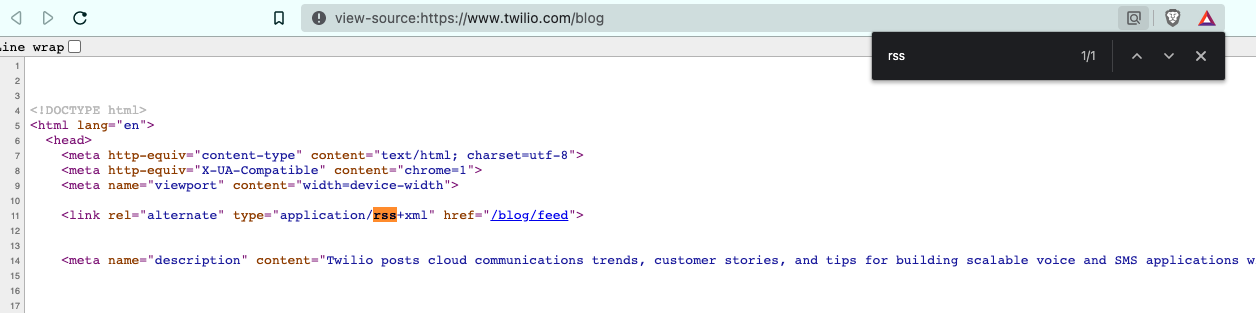
Once you know where to download the feed, the rest is the same as downloading any file from the internet. The project uses the following code snippet to download the RSS feed and create the XmlDocument by loading the XML stream:
var httpClient = _httpClientFactory.CreateClient("RssServiceHttpClient");
using (var response = await httpClient.GetAsync(_rssSettings.FeedUrl))
using (var rssFeedStream = await response.Content.ReadAsStreamAsync())
{
    var xmlDocument = new XmlDocument();
    xmlDocument.Load(rssFeedStream);
…
The _httpClientFactory variable shown above is injected during the program setup:
.AddHttpClient("RssServiceHttpClient");
Parsing XML
After you get the raw XML, the next step is to parse and extract the bits you will use in your dynamic template.
You can find the full RSS 2.0 specification here. In the example project, you will use the main required elements: title, link, and description.

In the example, the built-in System.XML classes are used to parse the XML. The blog post items are under the /rss/channel/item path, so you get those elements like this:
XmlNodeList itemNodeList = xmlDocument.SelectNodes("/rss/channel/item");
The next step is to loop through the XML nodes in the XmlNodeList object which can be accessed by their index in the array:
for (int i = 0; i < itemNodeList.Count; i++)
{
    XmlNode titleNode = itemNodeList[i].SelectSingleNode("title");
    XmlNode linkNode = itemNodeList[i].SelectSingleNode("link");
    XmlNode descriptionNode = itemNodeList[i].SelectSingleNode("description");
    // ...
}
Other nodes are parsed and used in the example, but for brevity, the code snippet above only shows the required ones.
One thing to note is parsing the elements with namespaces. In the example project, only the author element has a namespace, and that’s why it’s treated a bit differently. For example, an author element looks like this in the RSS feed:
<dc:creator
        xmlns:dc="http://purl.org/dc/elements/1.1/">Firstname Lastname
</dc:creator>
To access this element, first, you need to define an XML namespace:
XmlNamespaceManager xmlNamespaceManager = new XmlNamespaceManager(xmlDocument.NameTable);
xmlNamespaceManager.AddNamespace("dc", "http://purl.org/dc/elements/1.1/");
And in the parsing code, you can access the element like this:
XmlNode authorNode = itemNodeList[i].SelectSingleNode("dc:creator", xmlNamespaceManager);
Parsing HTML
Initially, I was planning to use only the RSS feed to obtain all the data used in the dynamic template. I also wanted to use the blog header image and published date in the digest email. Unfortunately, those bits of information don’t come in the RSS XML data. That’s why I resorted to HTML parsing. The risk of HTML parsing is that Twilio could change its HTML structure and CSS classes at any point, which would break the code.
!!!info
The HTML parsing is implemented by using the AngleSharp library.
!!!
For every blog post in the feed, the sample project parses the post HTML and selects the header image and the publish date:
public async Task<(string, string)> GetHeaderImageUrlAndPostDate(string blogPostUrl)
{
    var config = AngleSharp.Configuration.Default.WithDefaultLoader();
    var address = blogPostUrl;
    var context = BrowsingContext.New(config);
    var document = await context.OpenAsync(address);
    var cellSelector = "#header_image > img";
    var cell = document.QuerySelector(cellSelector);
    var headerImgSrc = cell.Attributes.GetNamedItem("src");
    var publishDateCellSelector = "body > main > section > ul > article > header > div > div.article-authors > span";
    var publishDateCell = document.QuerySelector(publishDateCellSelector);
    return (headerImgSrc?.Value, publishDateCell?.InnerHtml);
}
The important part is finding the CSS selector of the element you’re interested in. This is relatively straightforward with the Developer Tools in your browser.
For example, to get the selector of the header image, open a Twilio blog post. Then right-click on the header image and select Inspect from the context menu. While the element is still selected, right-click again to open the context menu. Click Copy and then Copy selector as shown in the screenshot below:
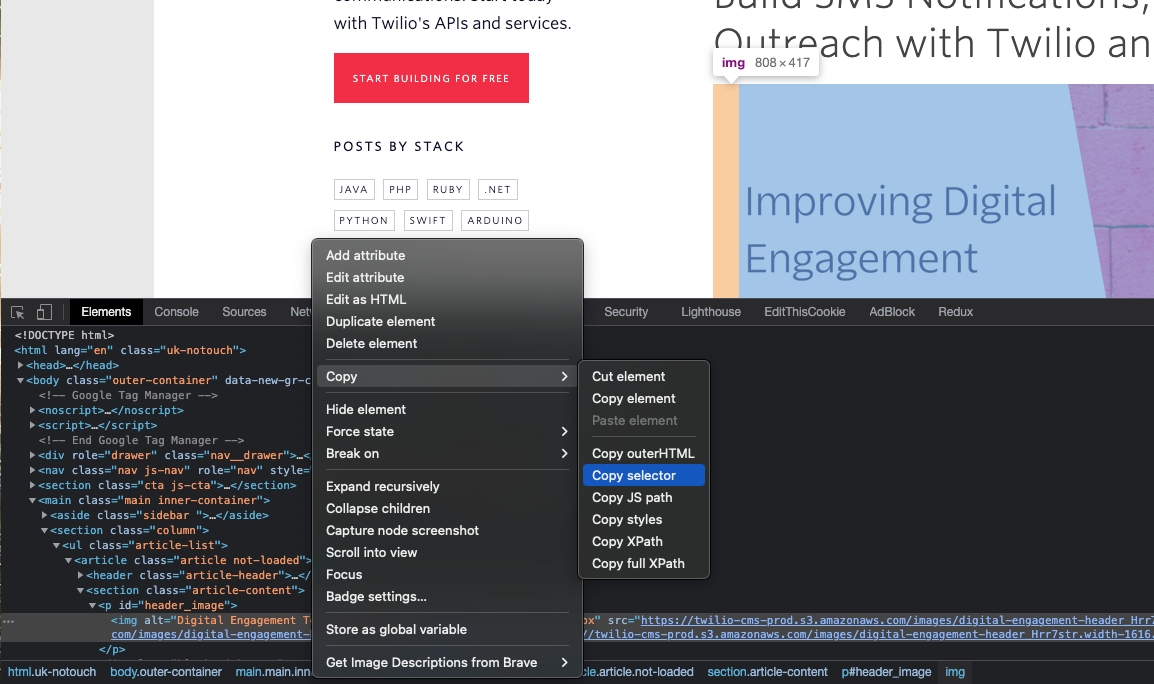
The selector copied should look like this: #header_image > img
This is the selector used in the project to get a reference to the img element. Then the src attribute is accessed by the following line:
var headerImgSrc = cell.Attributes.GetNamedItem("src");
Similarly, you can obtain the CSS selector for the publish date cell and use it to extract the date as a string.
Another use of HTML parsing is to get the introduction part of the blog post. The entire blog post is published in the XML feed, but it would take too much space to put it all in the email, so I decided to pick the first paragraph element (<p>).
Also, I didn’t want to load the URL for this task as it’s already in the XML data downloaded. So a different approach is used to parse the first paragraph of the blog post, as shown below:
public async Task<string> GetPostIntroduction(string rawPostHtml)
{
    var parser = new HtmlParser();
    var document = parser.ParseDocument(rawPostHtml);
    var cellSelector = "div:nth-child(1) > p:nth-child(1)";
    var cell = document.QuerySelector(cellSelector);
    return cell?.InnerHtml;
}
It’s more concise as it doesn’t need to download the HTML over the network and only uses the raw HTML passed in the rawPostHtml argument.
Putting it All Together: Sending the Latest Posts from the Twilio Blog via Email
Finally, it’s time to reap the rewards of all the preparation work you put in. The example project supports one last command you will look into now: Send email command.
You get all the data to use in the email from the IDataProvider.GetEmailData implementation. In this final version of the sample application, you will use TwilioBlogDataProvider, which in turn uses the RssService by calling the GetBlogInfo method.
var blogInfo = await _rssService.GetBlogInfo();
Next, you prepare the dynamic data to be used in the rendered HTML:
return new
{
    recipientName = _emailDataSettings.RecipientName,
    subject = $"{_emailDataSettings.SubjectPrefix} - {FormatDate(DateTime.Today)}",
    lastBuildDate = FormatDate(blogInfo.LastBuildDate, showTime: true),
    blogPostList = blogInfo.BlogPosts.Select(b => new
    {
        title = b.Title,
        link = b.Link,
        headerImageUrl = b.HeaderImageUrl,
        description = b.Description,
        author = b.Author,
        publishDate = FormatDate(b.PublishDate),
        categories = string.Join("; ", b.Categories)
    })
};
string FormatDate(DateTime date, bool showTime = false)
{
    return (showTime) ? date.ToString("dd MMMM yyyy, HH:mm") : date.ToString("dd MMMM yyyy");
}
The code that sends the email is quite concise:
var dynamicEmailData = await _dataProvider.GetEmailData();
var from = new EmailAddress(_emailSettings.SenderEmailAddress, _emailSettings.SenderDisplayName);
var to = new EmailAddress(_emailSettings.RecipientEmailAddress, _emailSettings.RecipientDisplayName);
var msg = MailHelper.CreateSingleTemplateEmail(from, to, _emailSettings.TemplateId, dynamicEmailData);
var response = await _sendGridClient.SendEmailAsync(msg);
To send the email, run the application, and the final email looks like this:
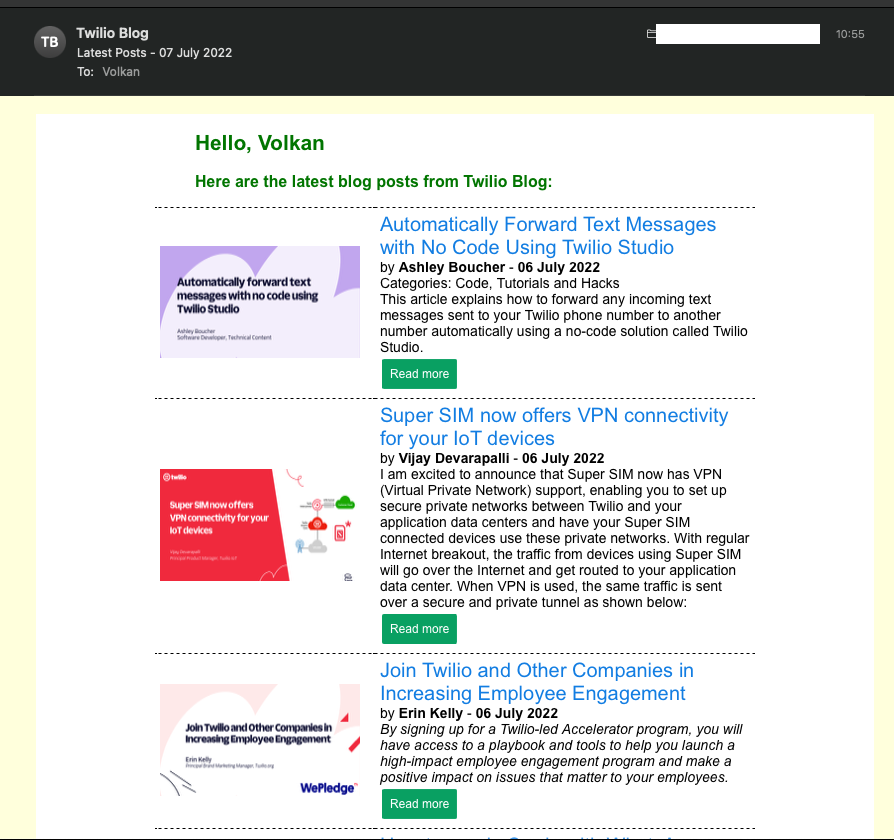
Now you get the same email but with data downloaded from the Twilio Blog RSS feed and individual blog pages and formatted in one nice digest email.
Conclusion
In this article, you learned how to create a Dynamic Email Template. You created an HTML email with CSS and used Handlebars templating to render the email with test JSON data. You also learned how to retrieve and parse RSS XML feeds as well as basic HTML parsing.
I hope you found this article helpful and interesting. The source code is publicly available, so feel free to download and play at will.
If you enjoyed this article, here are a few articles I’d recommend reading about template-based emails: